
Bulk Messaging
Objective
Learn how to send bulk messages to multiple contacts at once using the Message Center. This guide covers how to create contact groups, send messages to everyone in a group with a single action, and update your group message for promotions or events in the Auto Responder.
Why Use Bulk Messaging?
Bulk messaging allows you to reach multiple contacts at once without sending individual messages one at a time. Whether you are announcing a promotion, sharing an update, or following up with a group of customers, this feature saves time and keeps your communication consistent.
Here are a few ways bulk messaging can help:
- Save Time: Send one message that reaches your entire group instead of messaging each contact individually.
- Stay Consistent: Ensure every contact receives the same information at the same time.
- Promote Events and Sales: Quickly notify customers about upcoming events, promotions, or seasonal offers.
- Follow Up Efficiently: Reach out to a list of contacts for appointment reminders, product availability, or service updates.
- Keep Conversations Private: After a bulk message is sent, all replies are handled as private one-on-one conversations in your inbox.
How to Send a Bulk Message
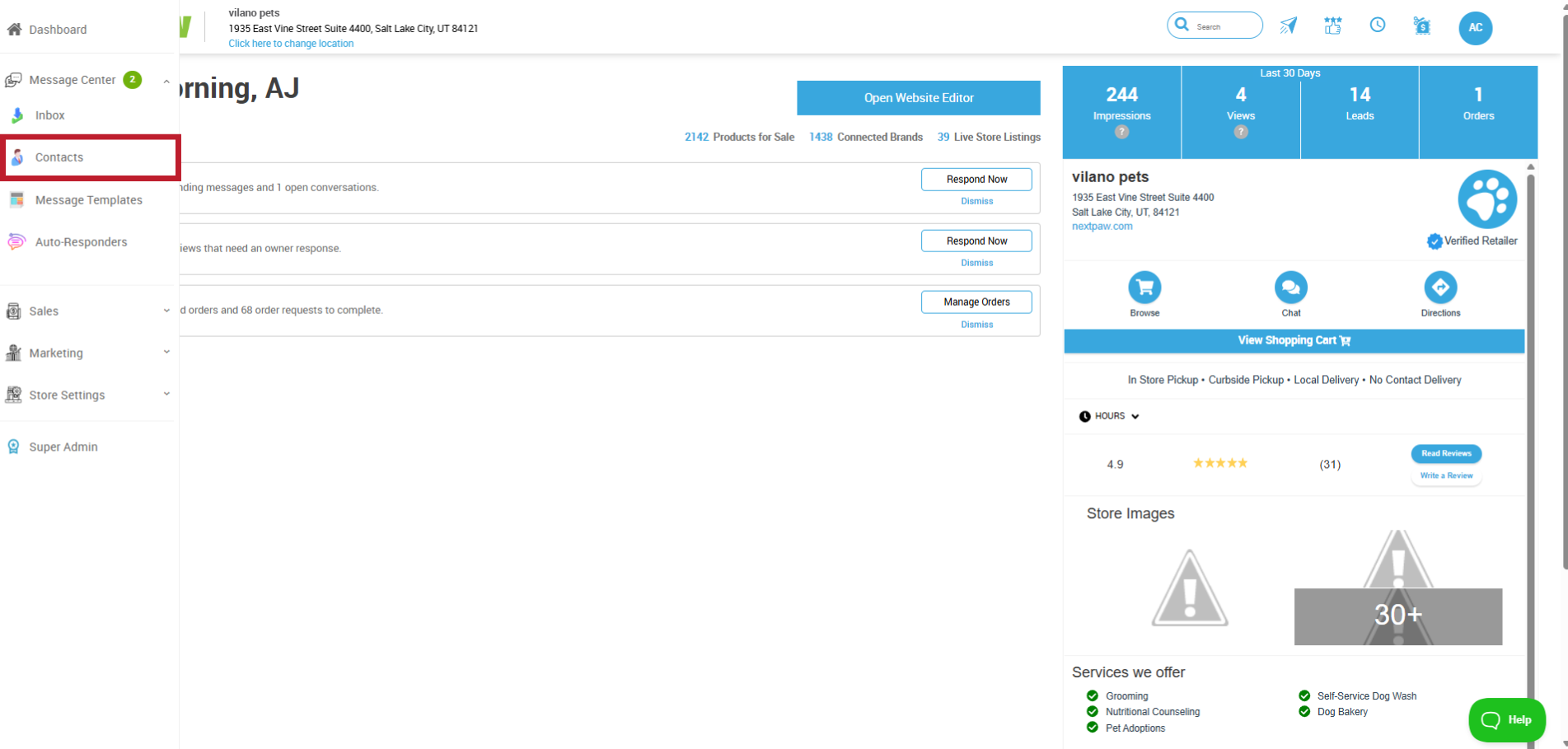
- Access the Message Center
From the NextPaw Dashboard, navigate to your location and open the Message Center. - Create a Contact Group
Select Contacts from within the Message Center.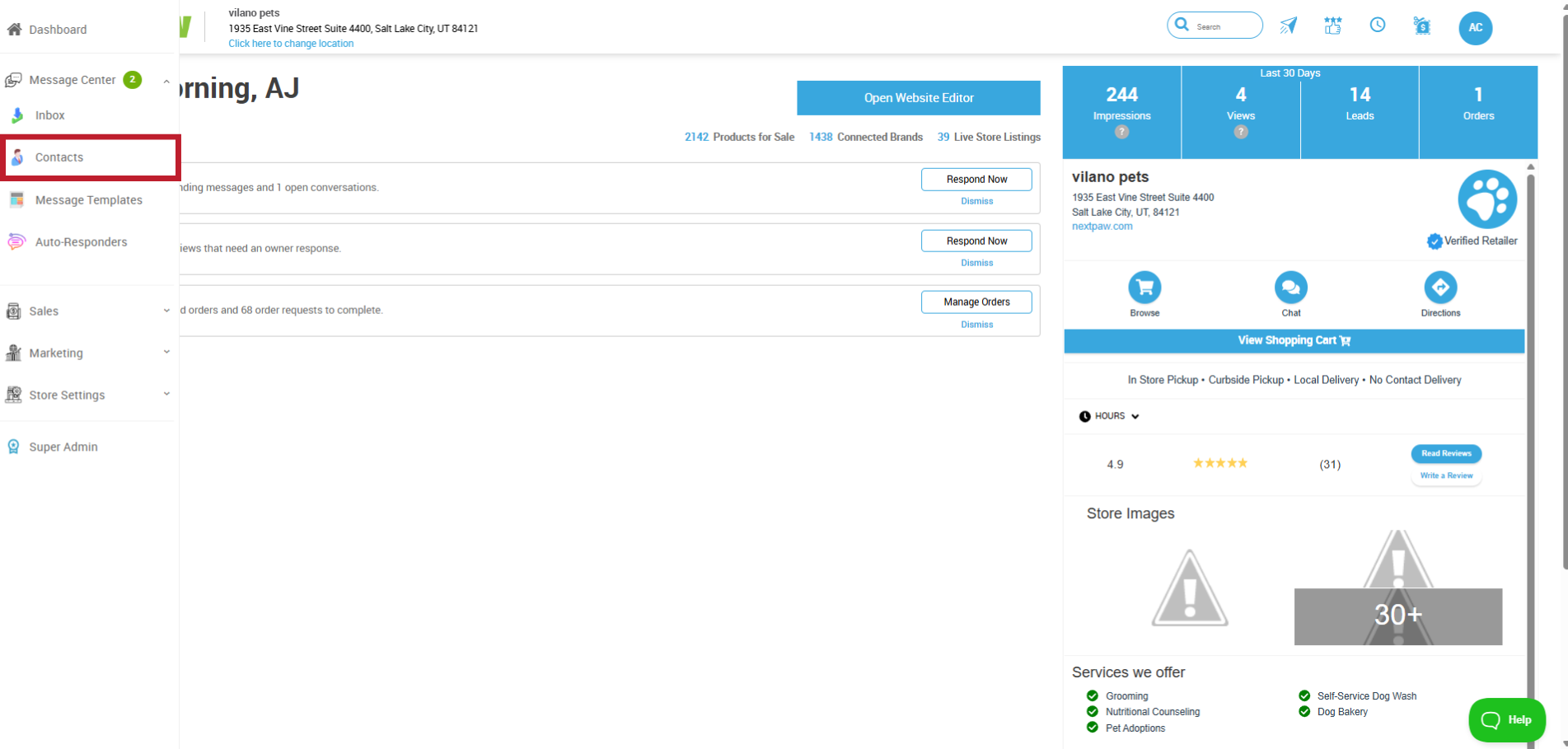
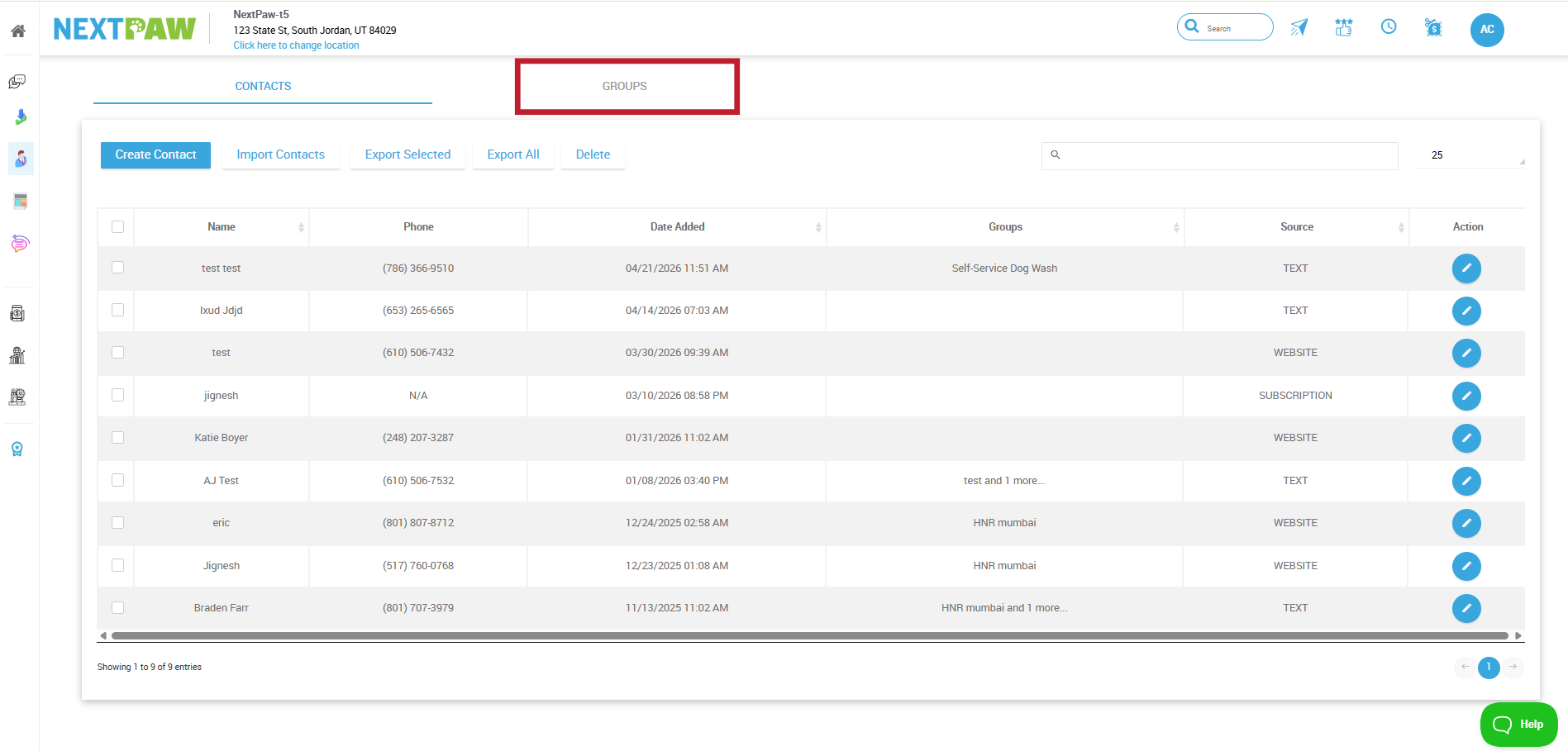
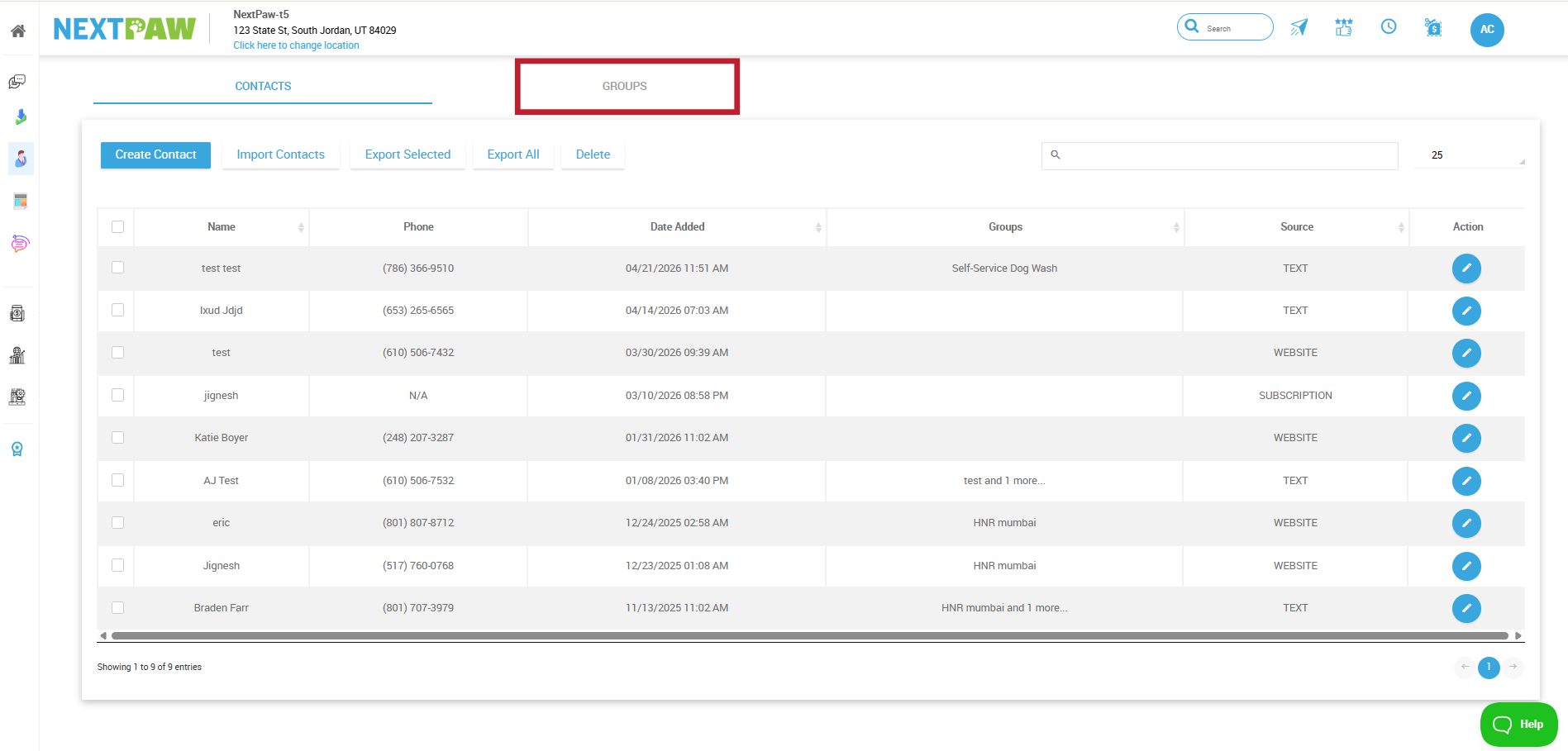
On the Contacts page, select Group.
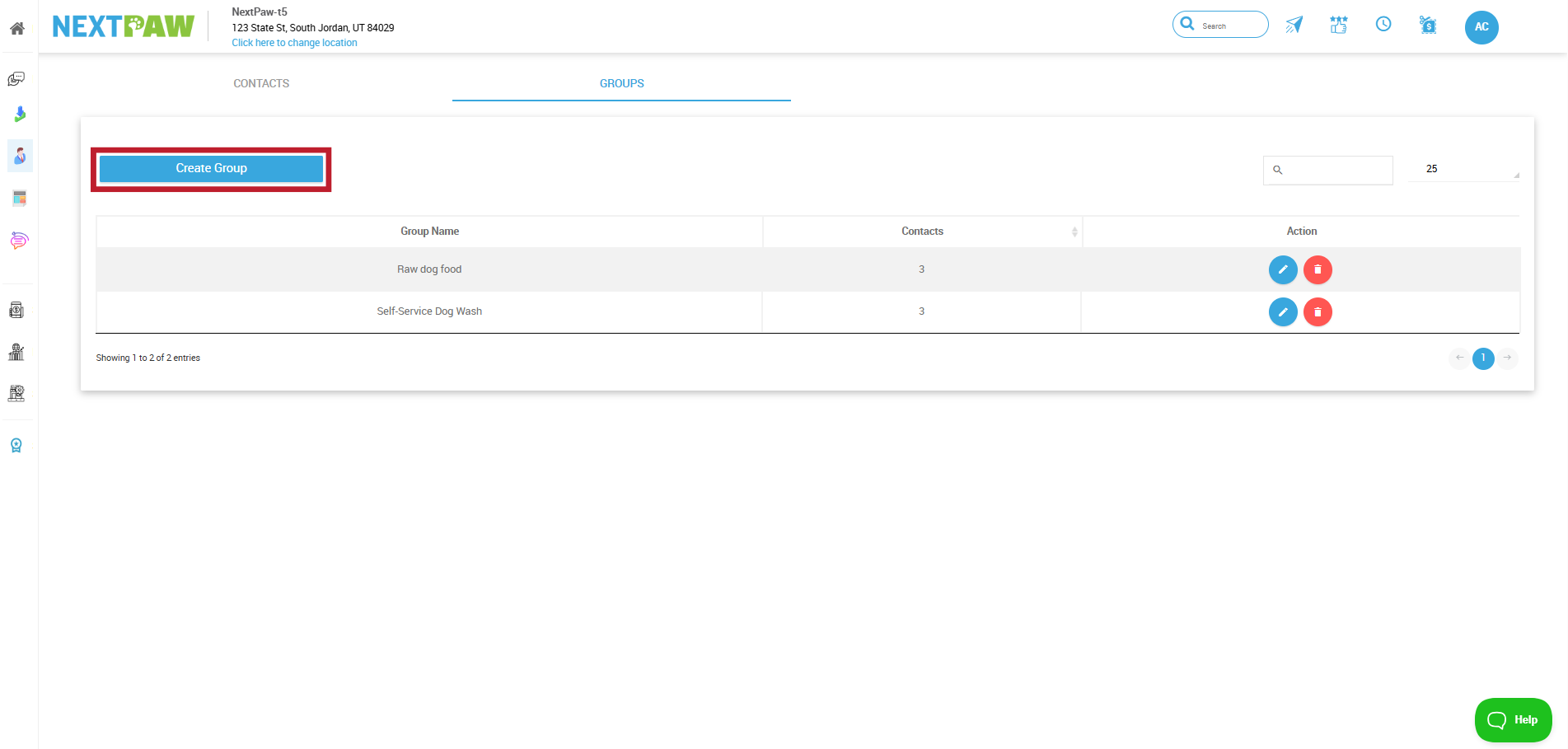
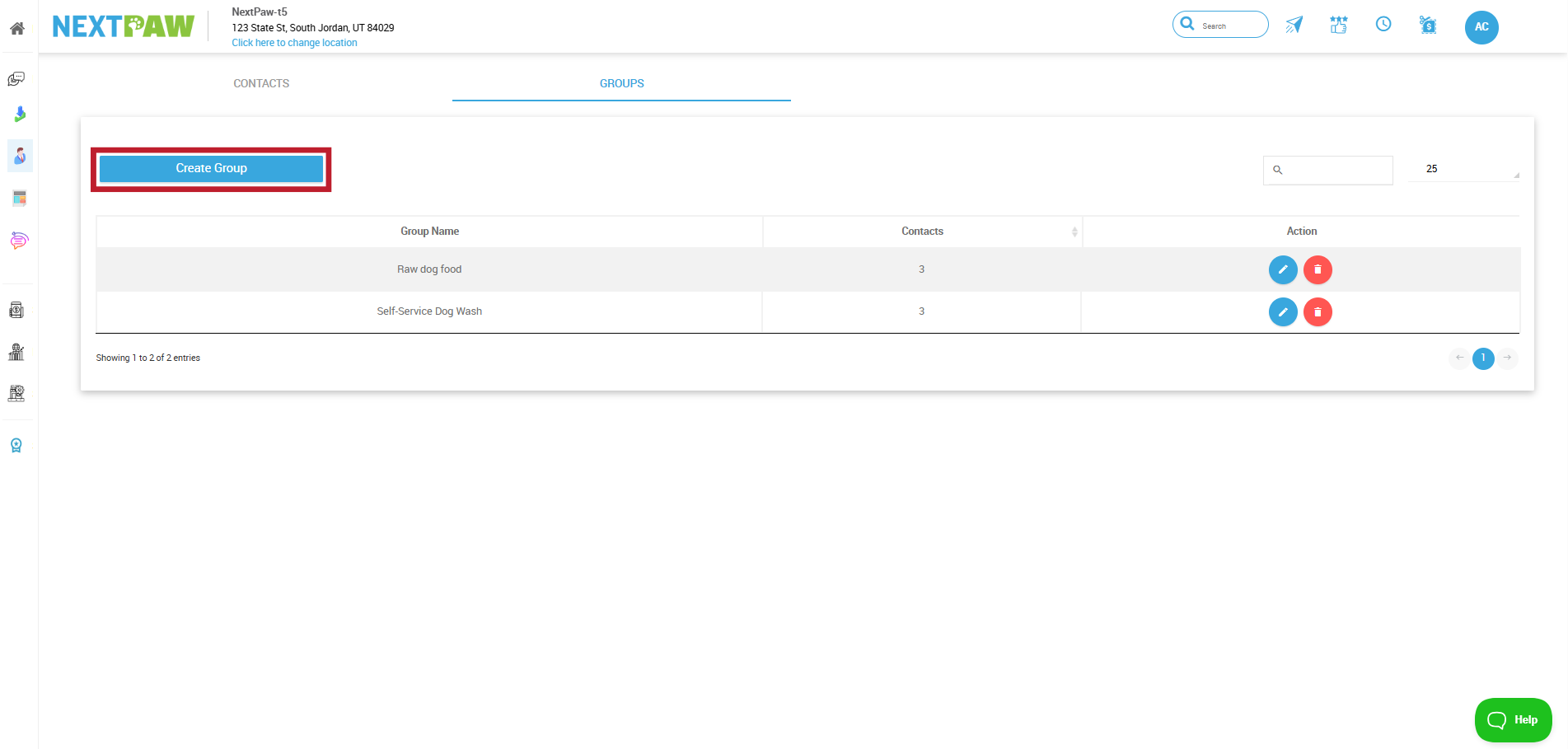
On the Groups Tab, select Create Group.
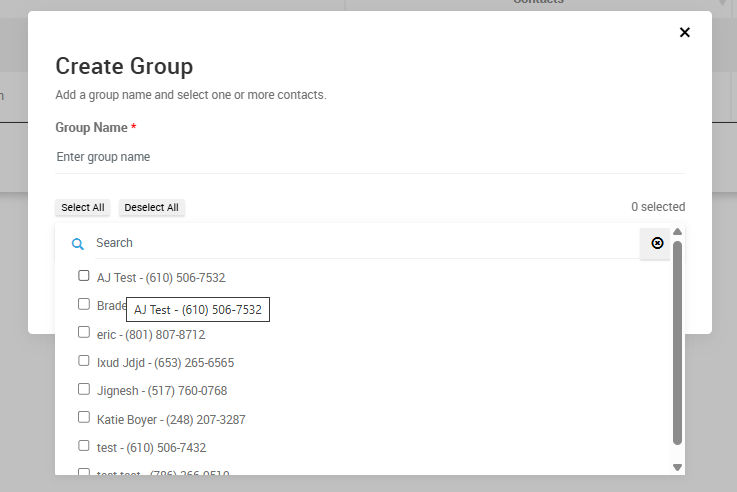
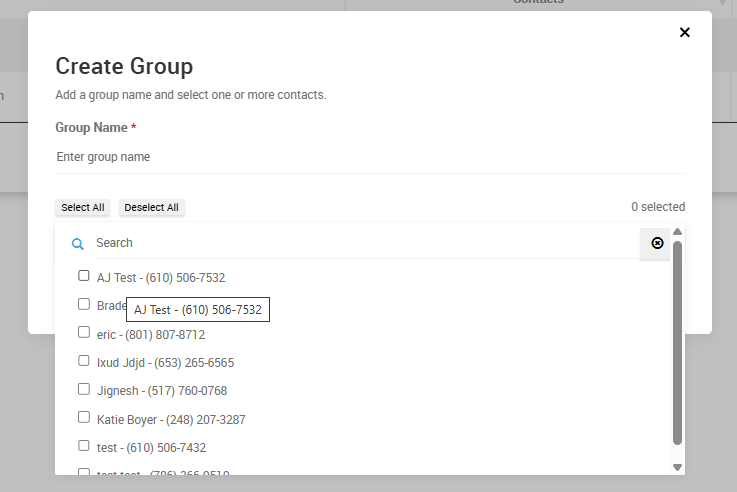
Name your group and add the contacts you want to include.
- Send the Bulk Message
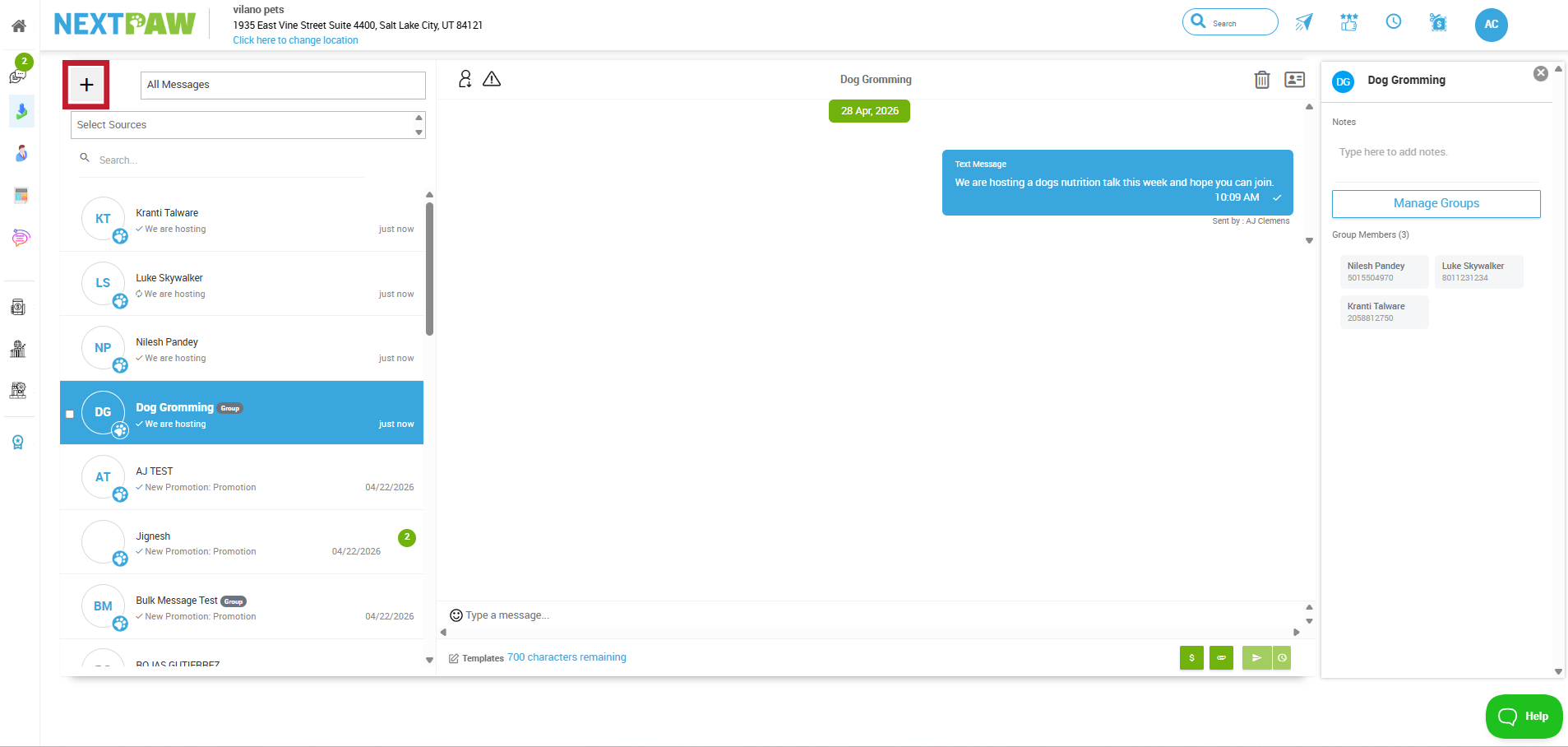
Start a New Message from the Message Center.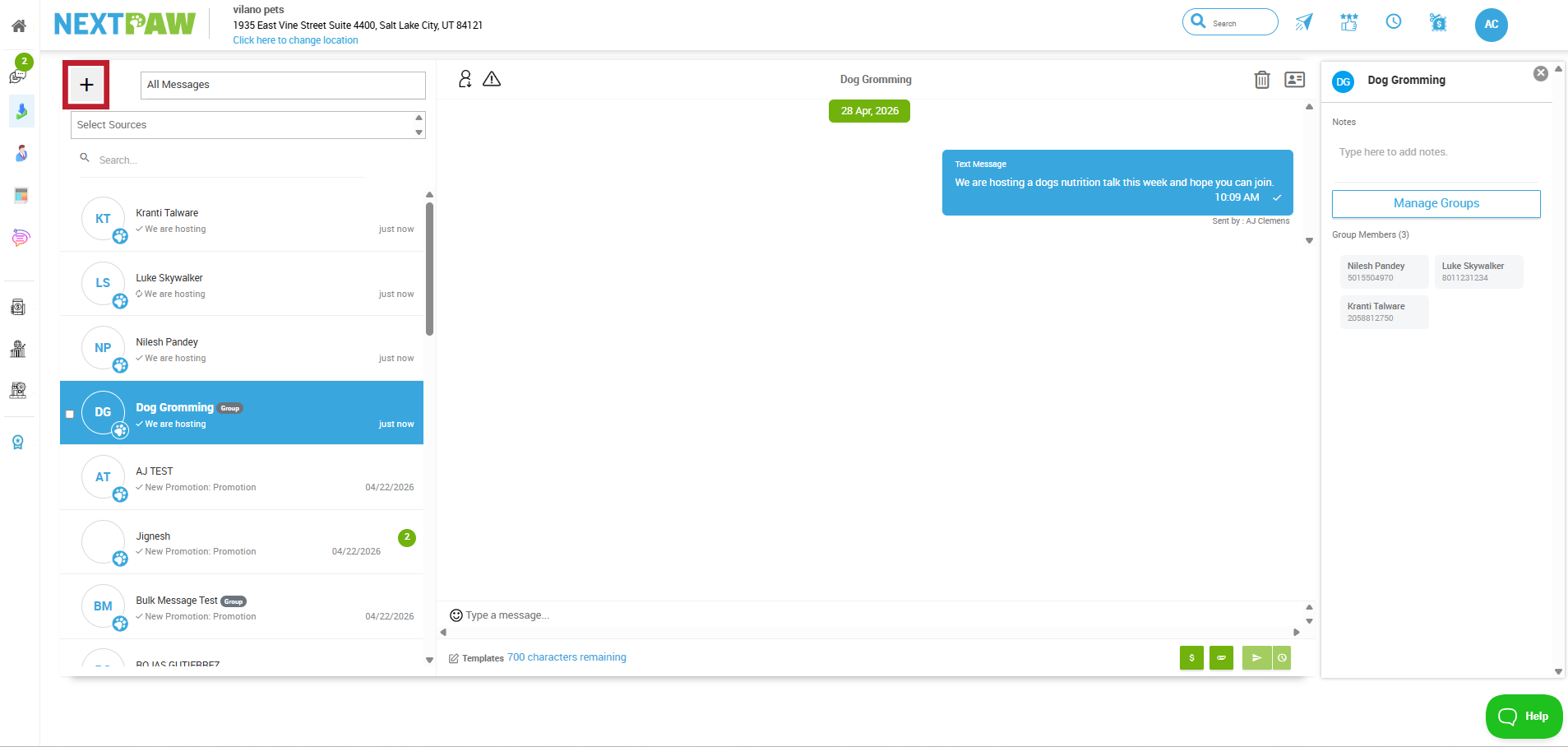
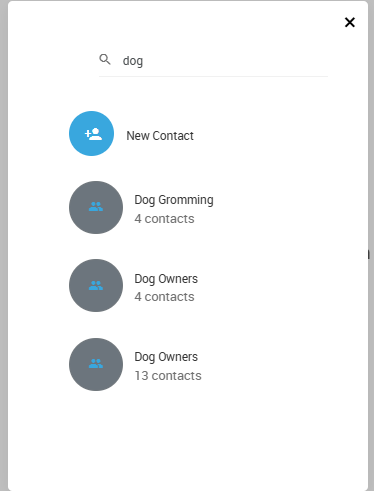
Search for and select the group you just created.
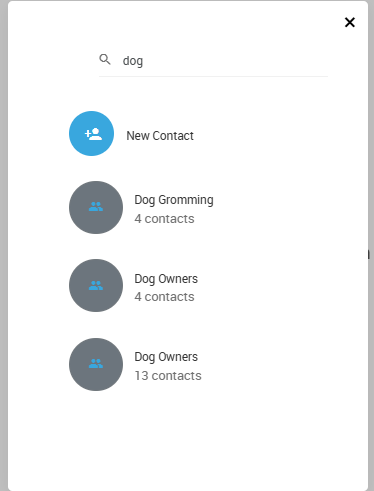
Important: Check Marketing Consent Before Sending
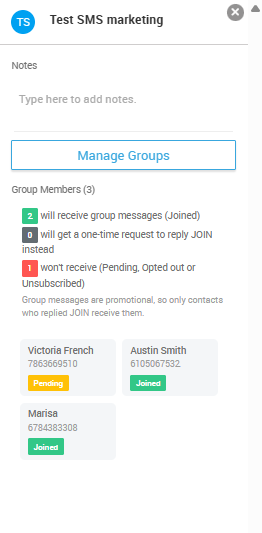
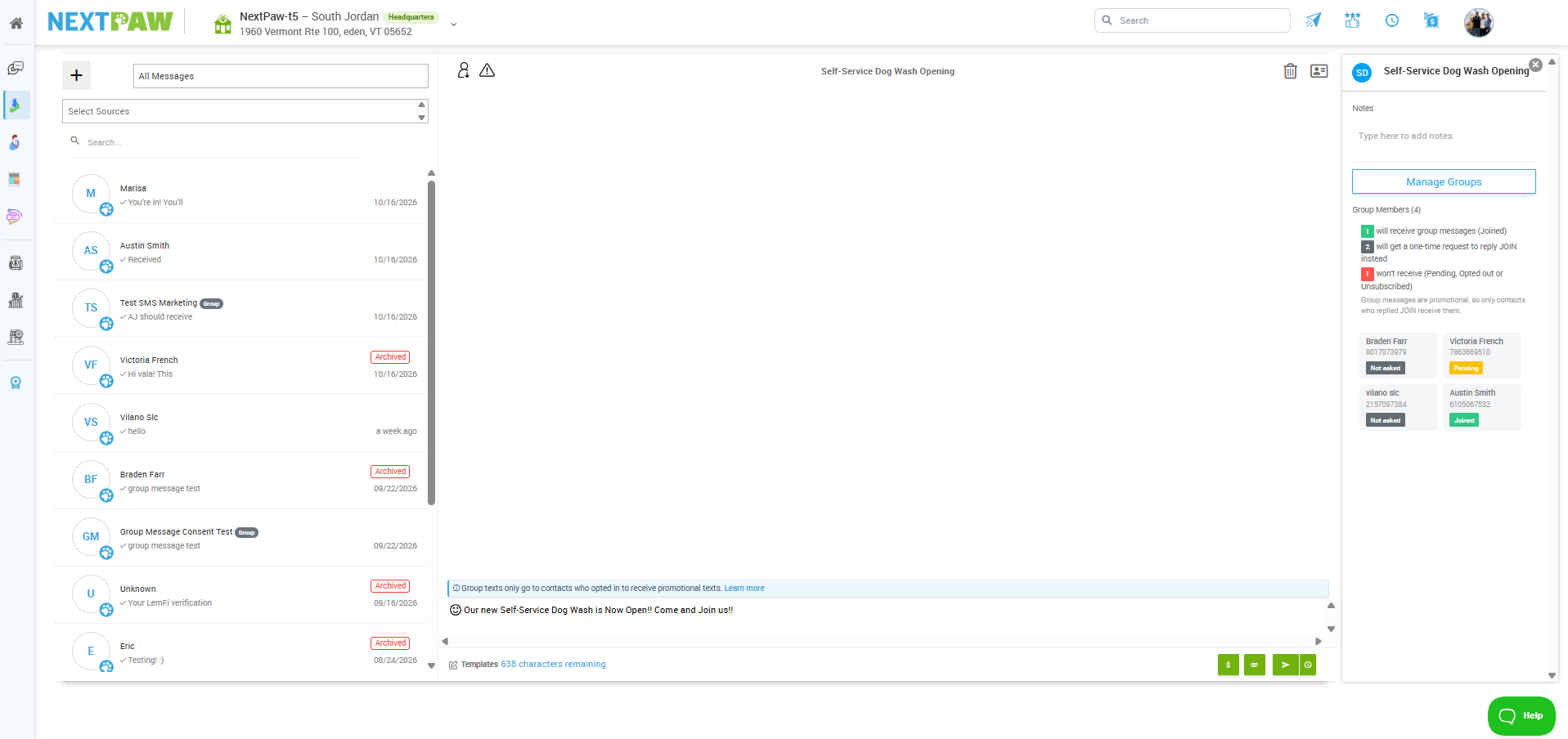
Group messages are promotional, so only contacts who have opted in will receive them. Before you send, the Group Members panel on the right side of the screen shows which contacts have consented to group marketing messages.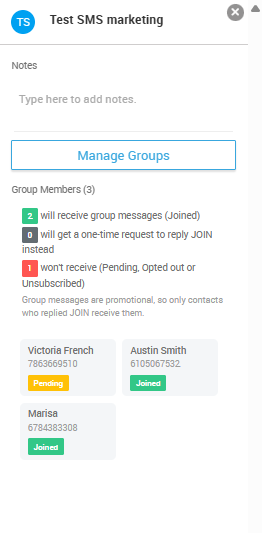
- Joined: The contact has opted in and will receive your group message.
- Not Yet Asked: The contact will receive a one-time invite to reply JOIN instead of your message.
- Pending, Opted Out, or Unsubscribed: The contact will not receive your message.
What if a contact joins after the invite?
If they reply JOIN within 24 hours, they will also receive the message you sent. If they join after 24 hours, they will not receive that message, but they will receive your future group messages.Contacts who have not opted in yet will receive this message asking them to join:
"Hi [First Name]! This is [Store Name]. We'd love to send you occasional texts about our events, promotions and special offers. Reply JOIN to opt in."
Once you have reviewed your group, type your message and click Send.
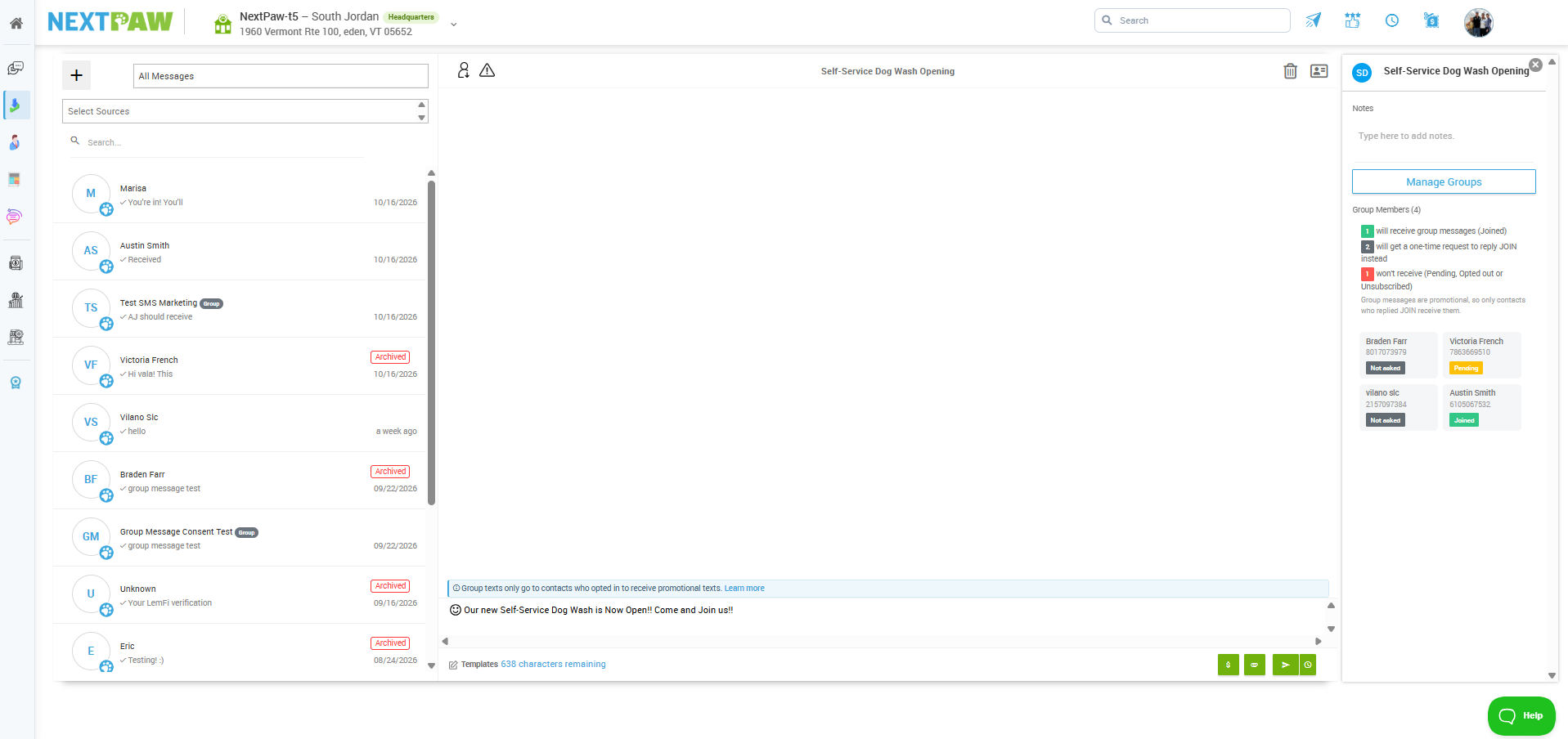
- What Happens After Sending
Every contact in the group who has opted in will receive the message. Each contact's conversation will jump to the top of your inbox, and all replies will be handled as private, one-on-one conversations. Recipients do not see each other's responses.
How to Update Your Group Message for a Promo or Event
If you regularly send group messages about a current promotion or an upcoming event, you can keep that message up to date in the Auto Responder. This lets you refresh your promo or event details in one place, so your group messaging always reflects your latest offer.
- Open the Auto Responder
From the NextPaw Dashboard, open the Message Center, then select Auto Responder.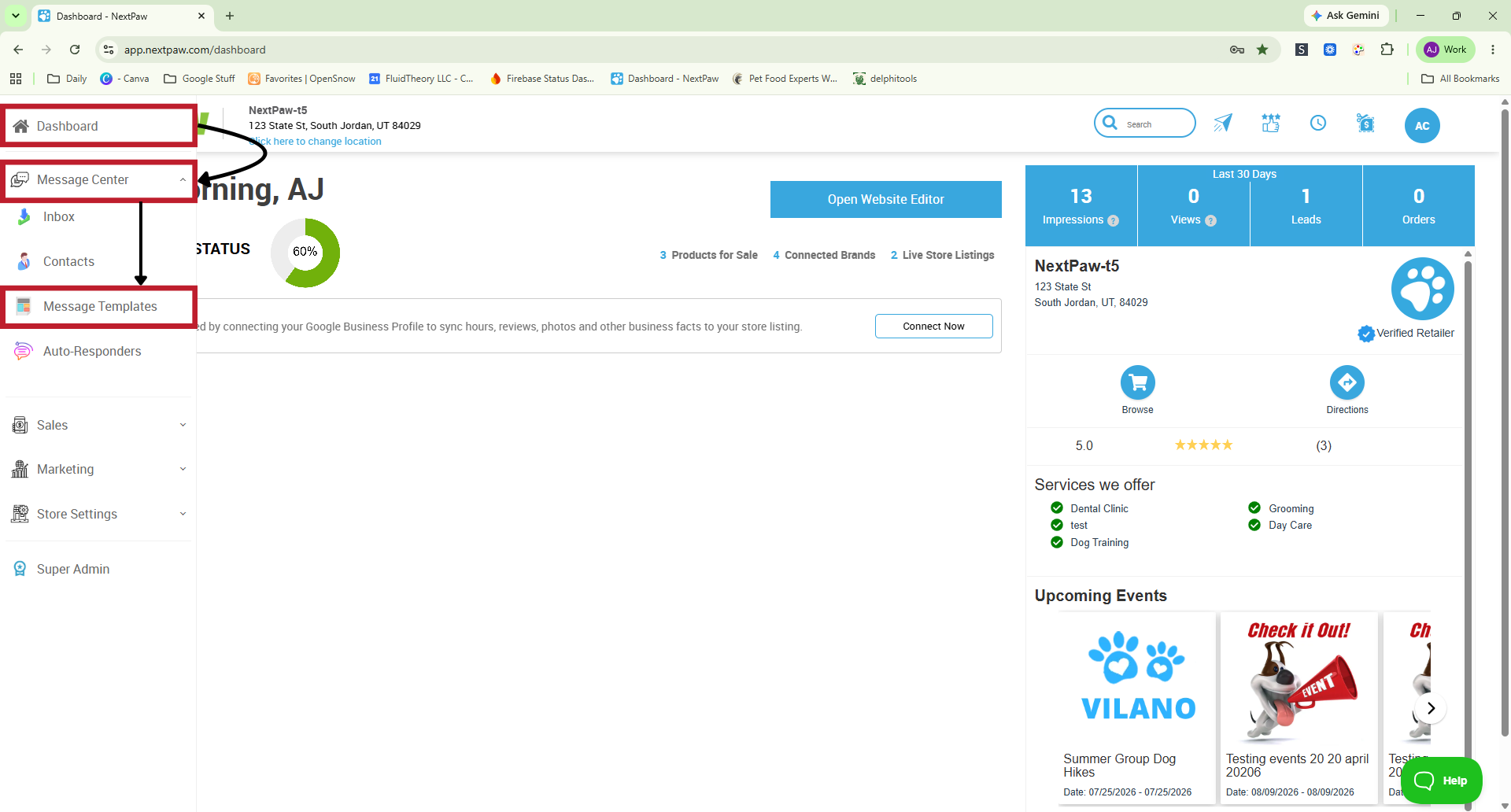
- Find the Group Messaging Section
Scroll to the bottom of the page. This is where you will find the Group Messaging section.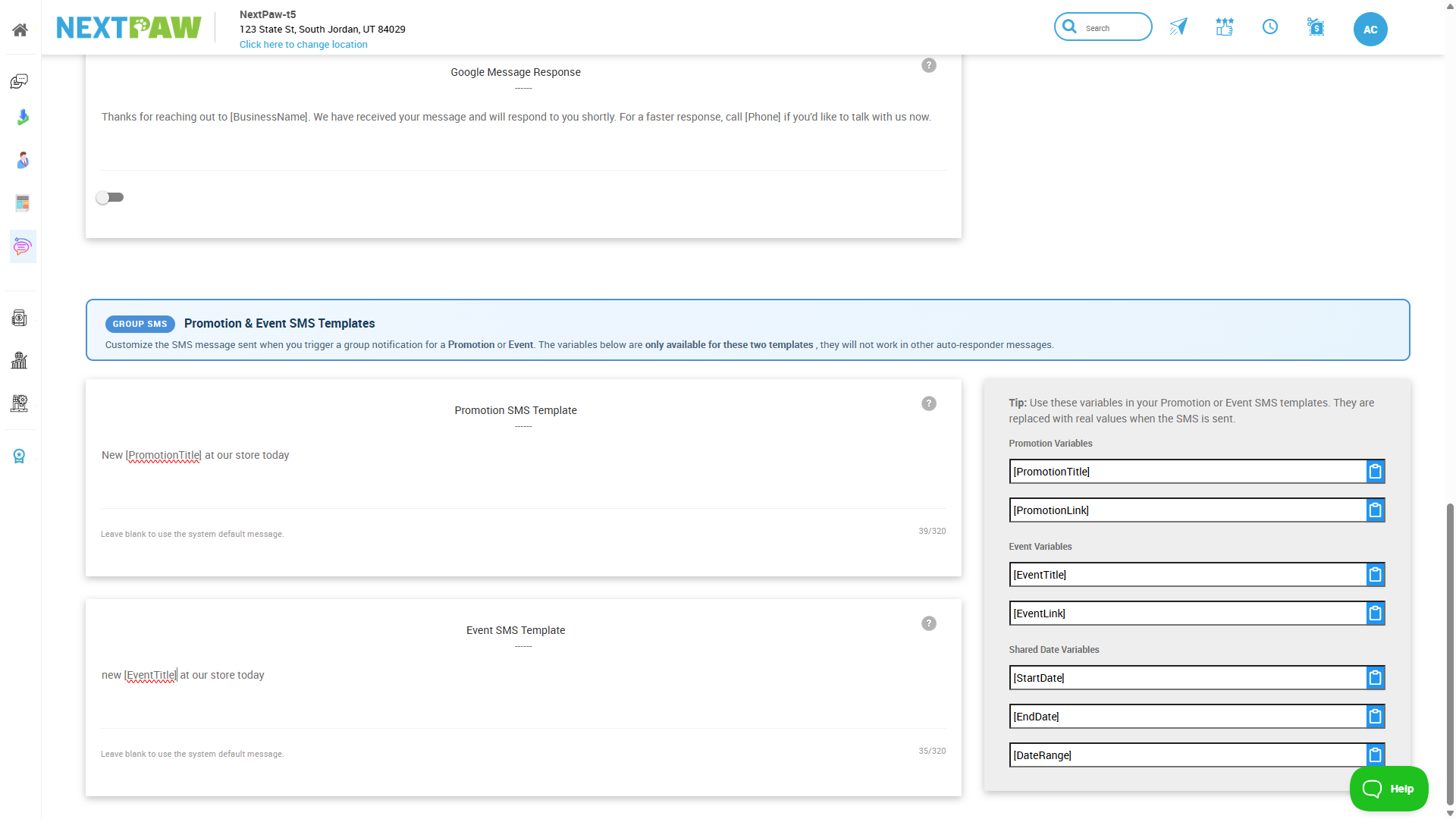
- Update Your Message
Edit the message with your current promo or event details, such as dates, discounts, or special offers.Tip: Use Variables. On the right side of the page, you will find Variables that you can copy and paste into your message. When you use a variable, details like the title and URL are automatically updated on the sent group message, so you never have to retype them.
- Your Changes Save Automatically
There is no save button to click. Once you update the message, your changes are saved automatically and will be used going forward.
How to Send an Event or Promotion Group Message
You can also send a group message automatically while creating an event or promotion. This is a great way to notify your customers by text the day your event or promotion goes live, without sending a separate bulk message.
Important: This option is only accessible if you have already created at least one contact group. If you have not created a group yet, follow the steps in the "How to Send a Bulk Message" section above first.
- Create Your Event or Promotion
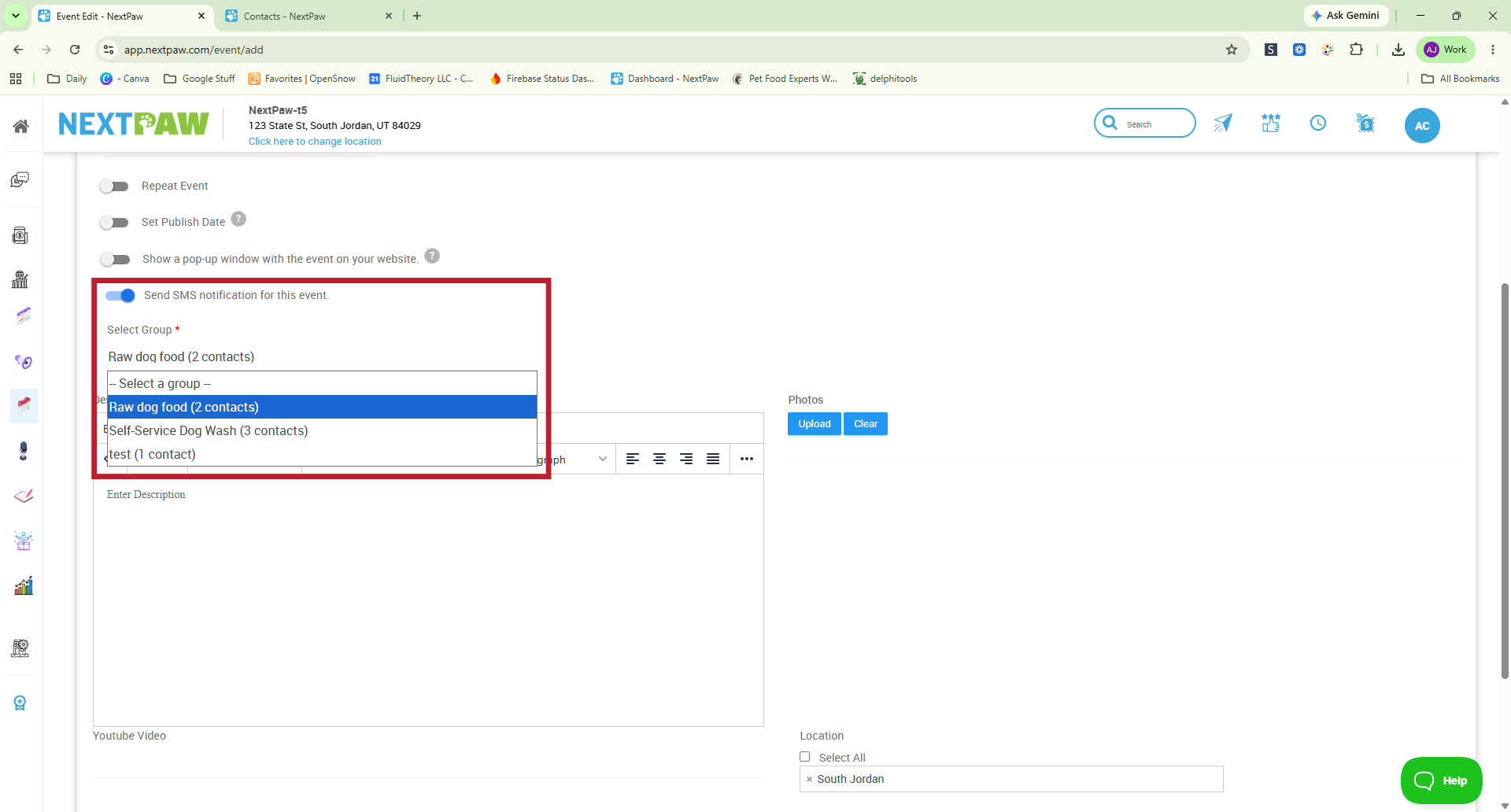
Start creating your event or promotion as you normally would. While setting it up, you will see the option "Send SMS notification for this event."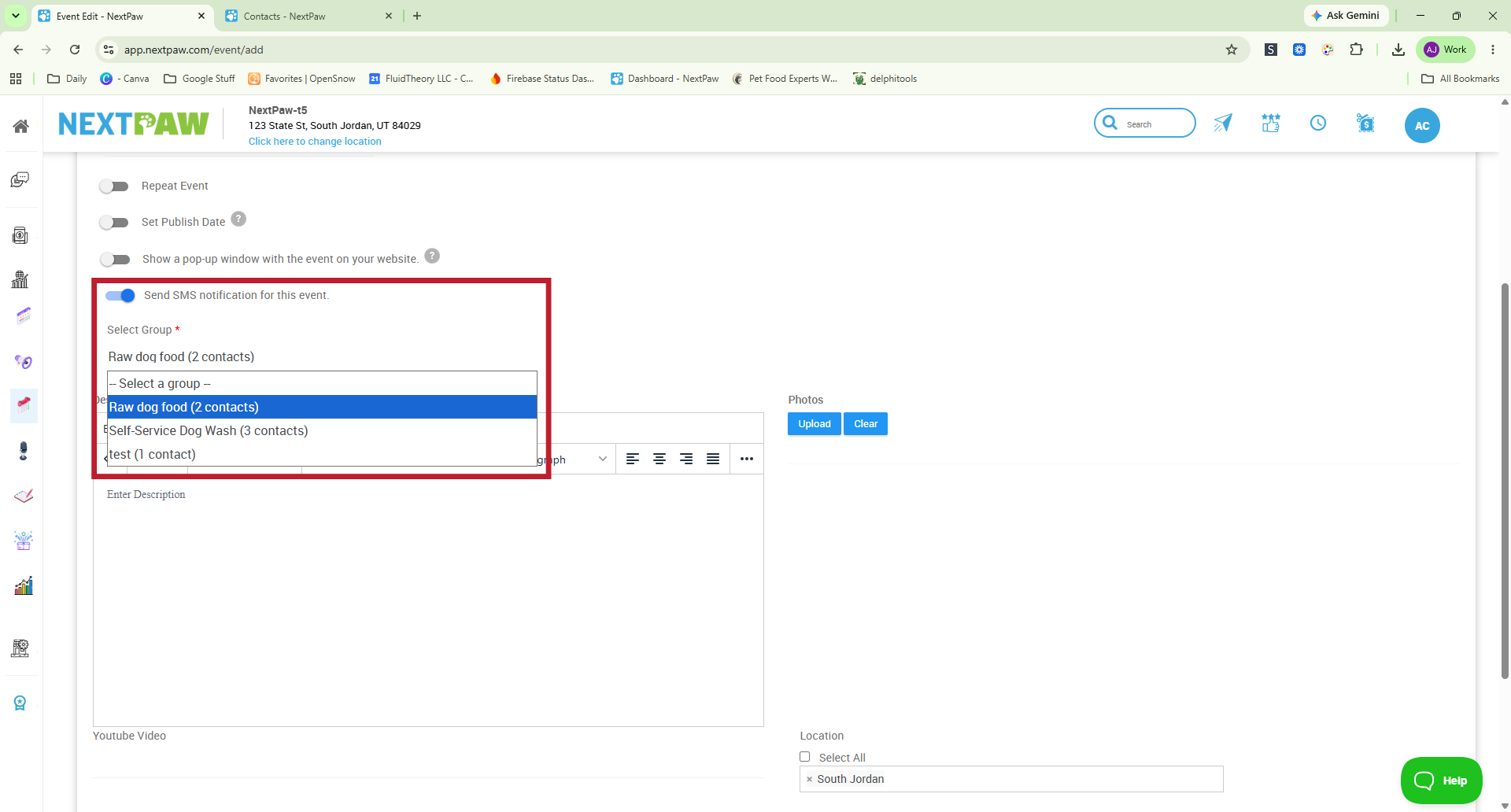
- Select Your Groups
After selecting the toggle, a dropdown will appear allowing you to select the groups you want to send this message to. - Finish and Save
After making your selection, finish the event or promotion setup and save as you normally would. Once saved, the message will send to your selected groups. - When the Message Sends
The message will only send if the event is going live that day. If your event or promotion is not going live on the day you save it, the message will not be sent.
Limits
- Group Size: Each group can include up to 100 contacts.
- Monthly Message Limit: You can send up to 500 bulk messages per month.
Final Tips
- Keep your groups organized by naming them clearly (for example, "VIP Customers" or "New Clients 2026").
- Double check your message before sending, as it will go out to everyone in the group at once.
- Use bulk messaging for announcements, promotions, and reminders rather than lengthy or personalized conversations.
- Make sure to use the Variables in the Auto Responder when updating your Group Messaging text, so the title and URL automatically update on the sent message.
- Remember that all replies come back as private messages, so you can follow up individually as needed.
Need Help?
If you need assistance with bulk messaging or creating contact groups, reach out to our team at Support@NextPaw.com.