
Editing Your User Profile
Objective
Learn how to send bulk messages to multiple contacts at once using the Message Center. This guide covers how to create contact groups and send messages to everyone in a group with a single action.
Why Use Bulk Messaging?
Bulk messaging allows you to reach multiple contacts at once without sending individual messages one at a time. Whether you are announcing a promotion, sharing an update, or following up with a group of customers, this feature saves time and keeps your communication consistent.
Here are a few ways bulk messaging can help:
- Save Time: Send one message that reaches your entire group instead of messaging each contact individually.
- Stay Consistent: Ensure every contact receives the same information at the same time.
- Promote Events and Sales: Quickly notify customers about upcoming events, promotions, or seasonal offers.
- Follow Up Efficiently: Reach out to a list of contacts for appointment reminders, product availability, or service updates.
- Keep Conversations Private: After a bulk message is sent, all replies are handled as private one-on-one conversations in your inbox.
How to Send a Bulk Message
- Access the Message Center
From the NextPaw Dashboard, navigate to your location and open the Message Center. - Create a Contact Group
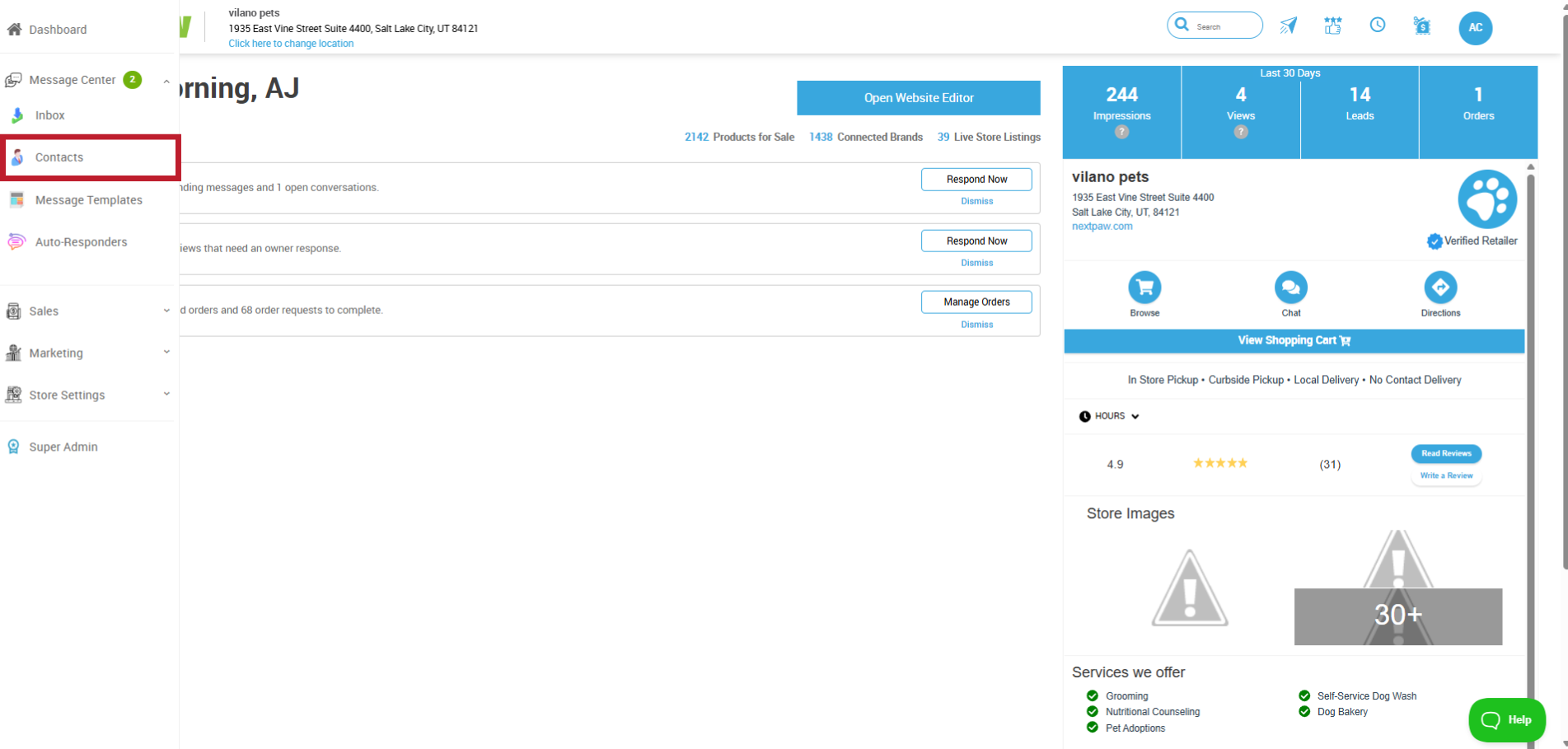
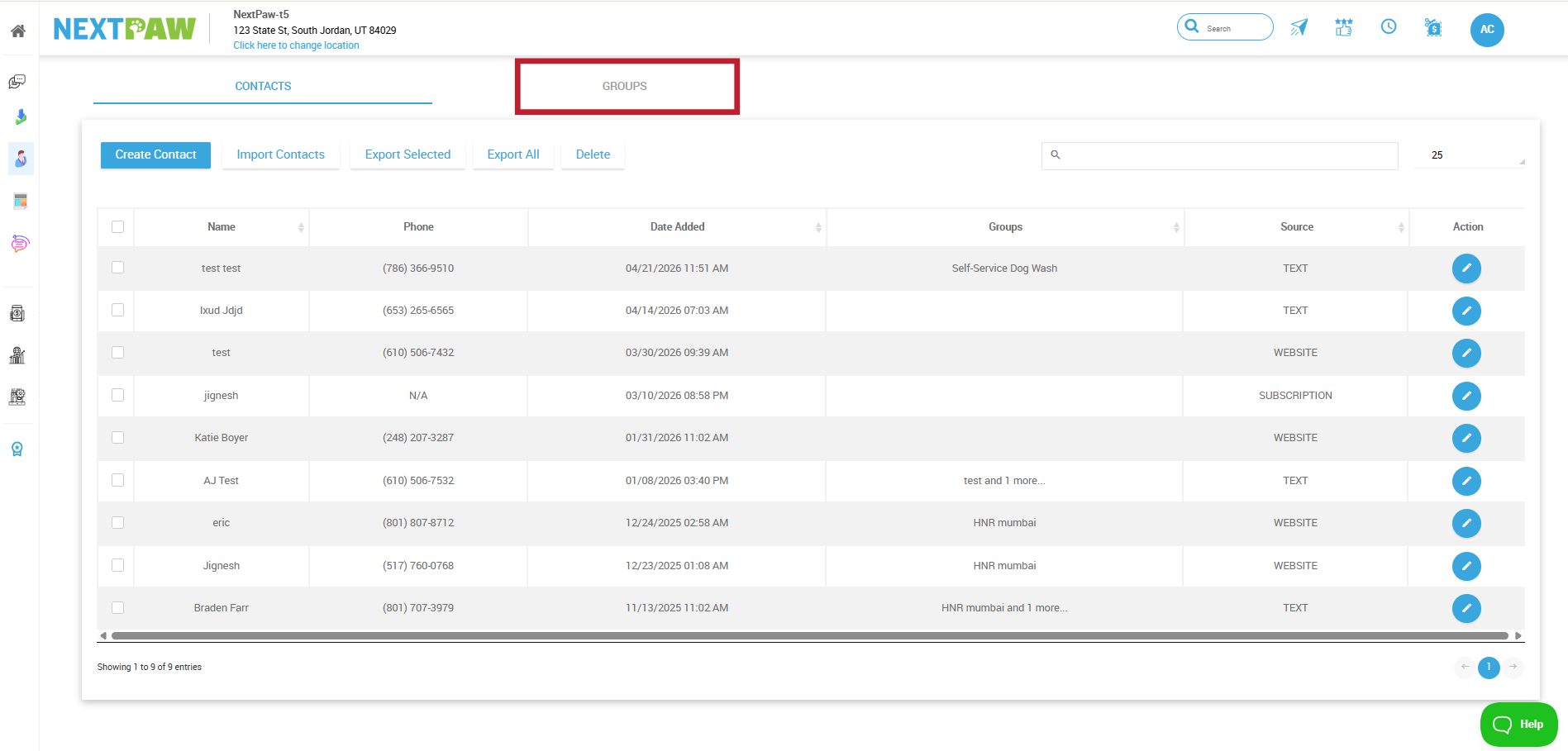
Select Contacts from within the Message Center.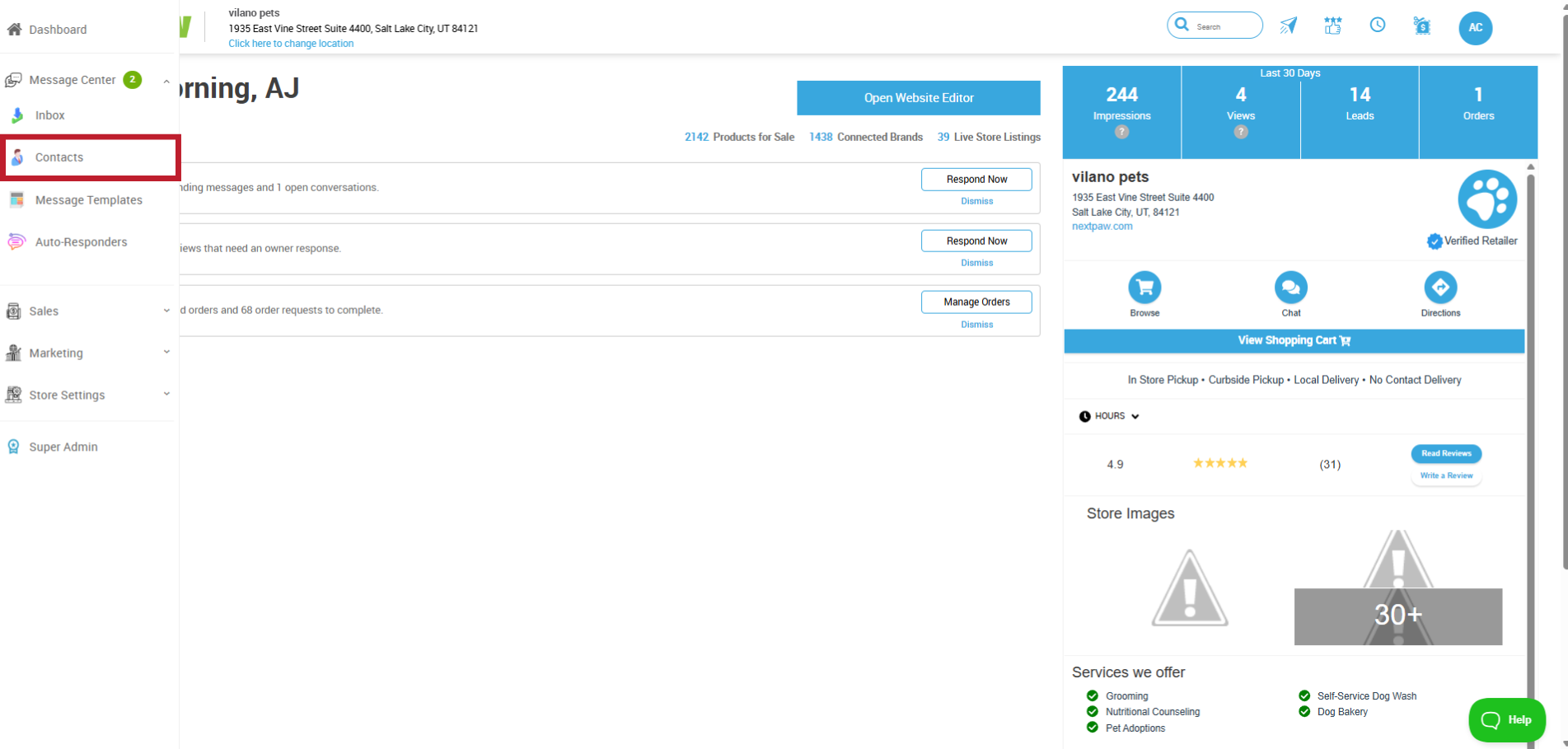
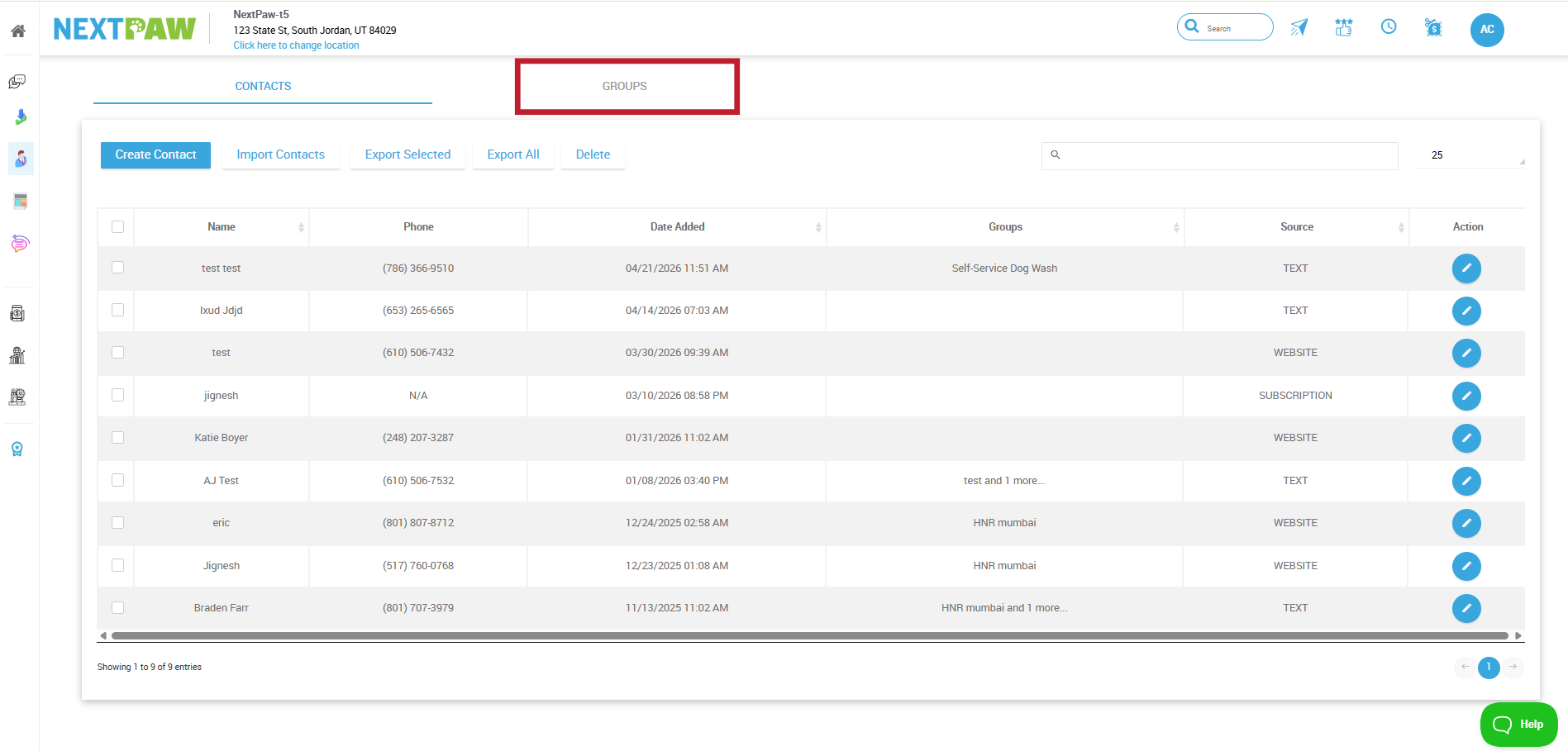
On the Contacts page, click Group.
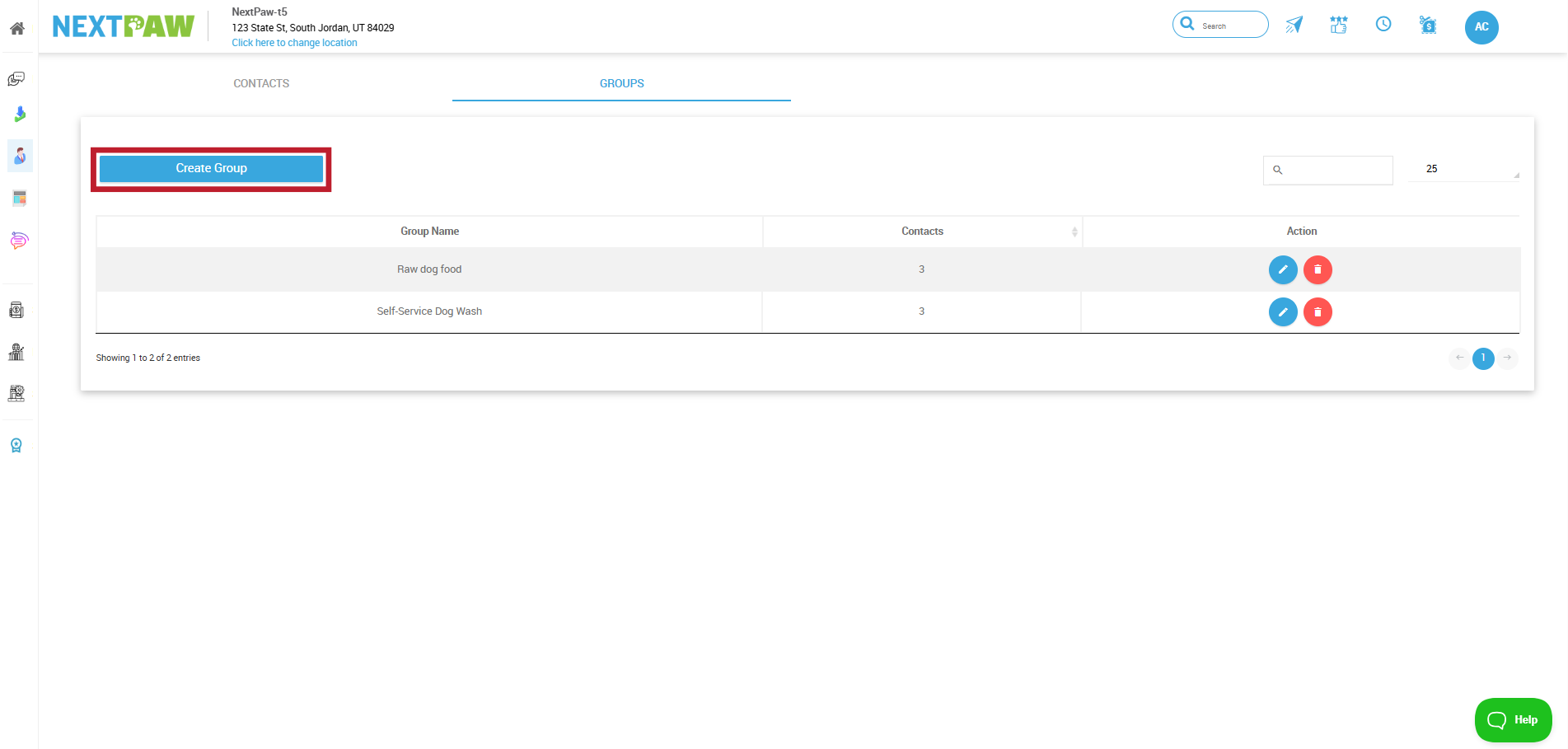
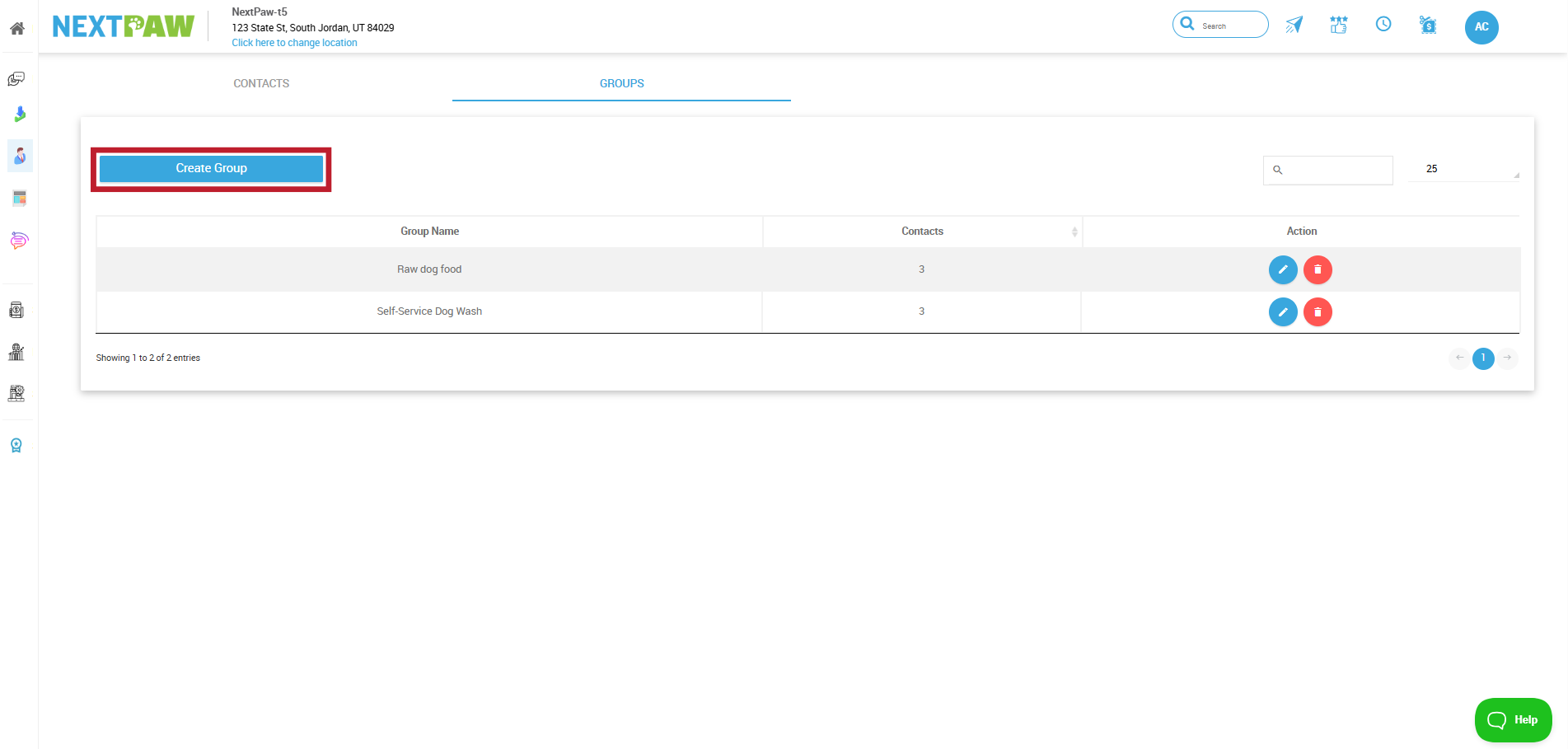
On the Groups Tab, click Create Group.
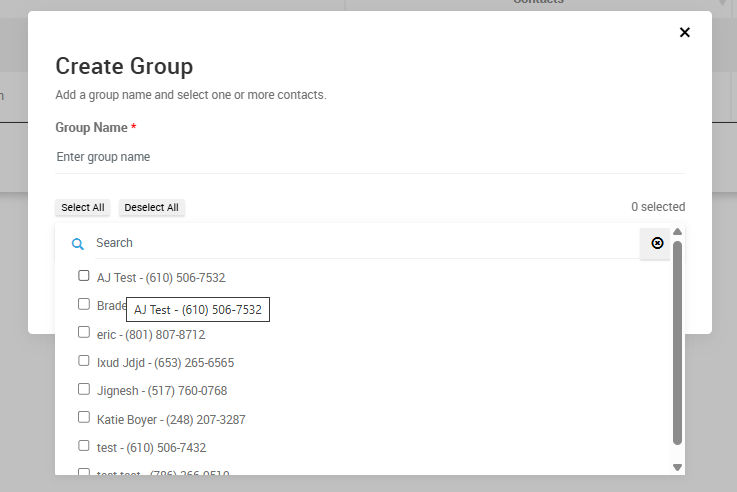
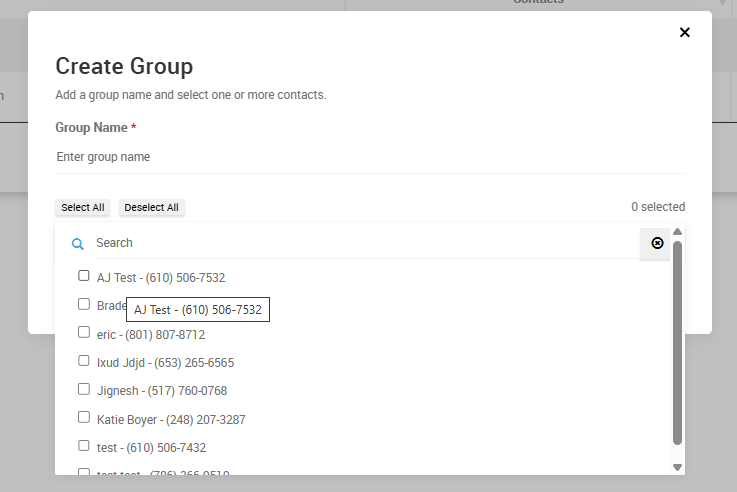
Name your group and add the contacts you want to include.
- Send the Bulk Message
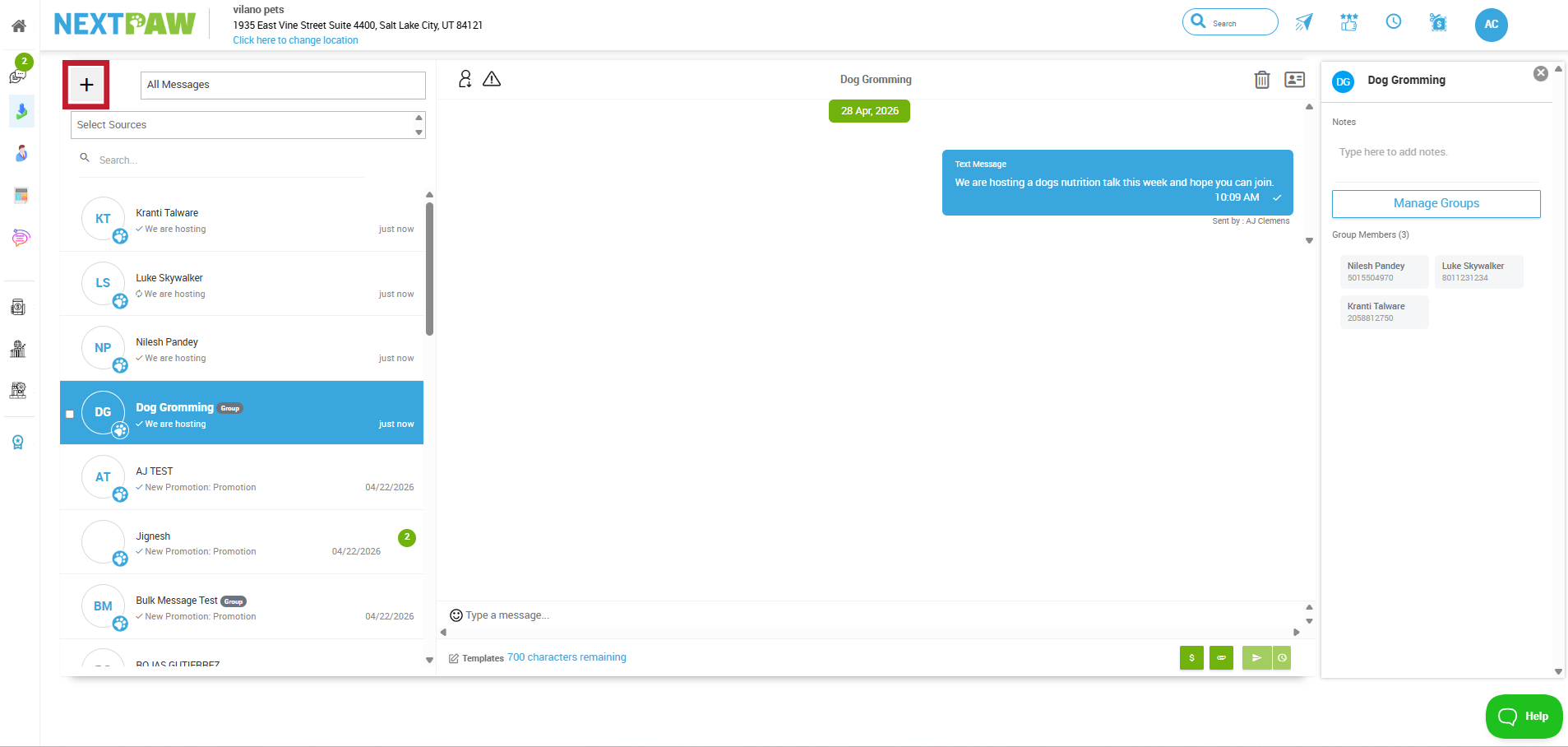
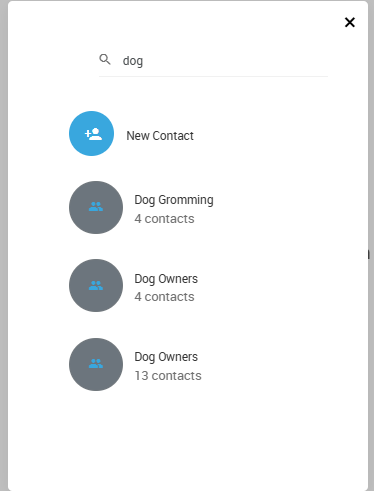
Start a New Message from the Message Center.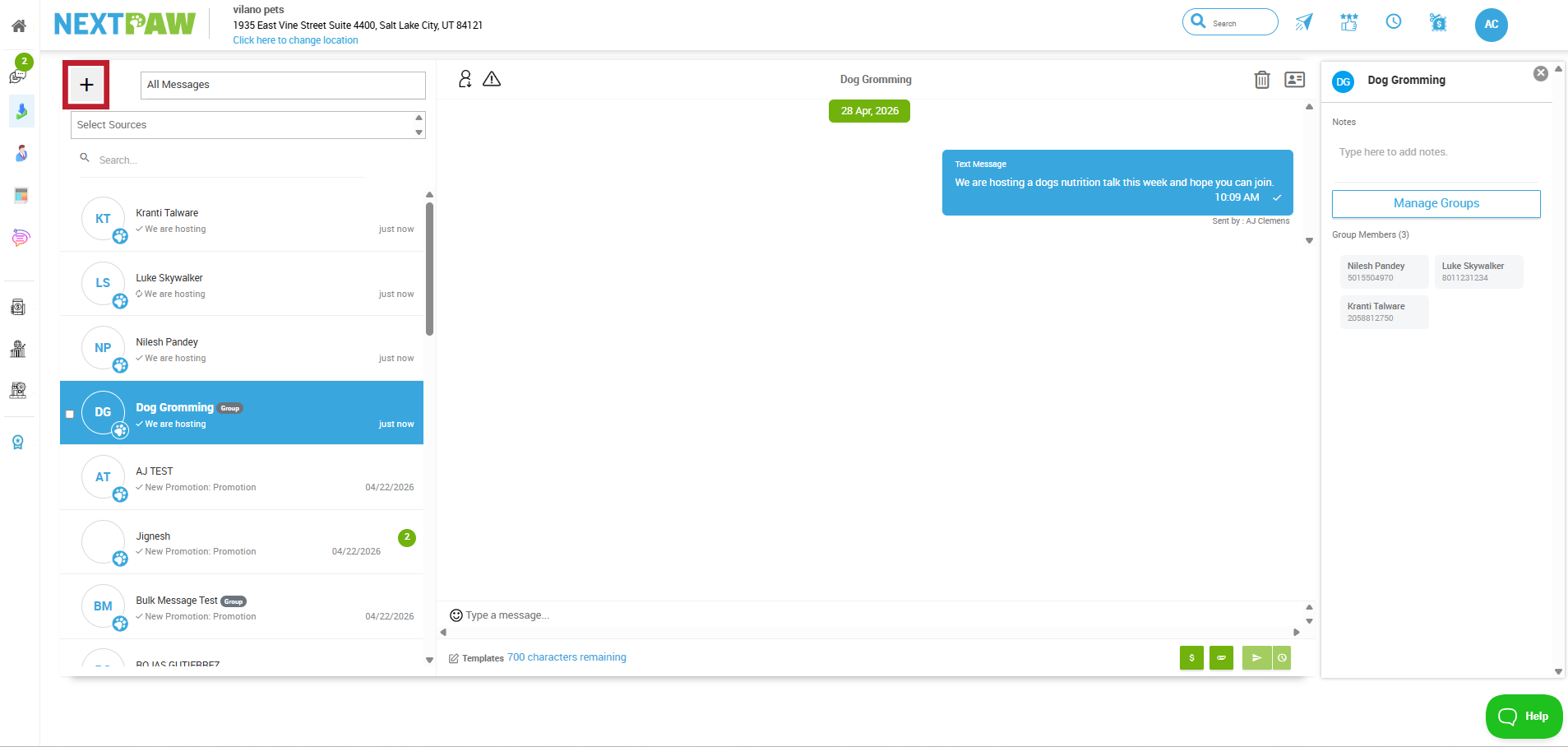
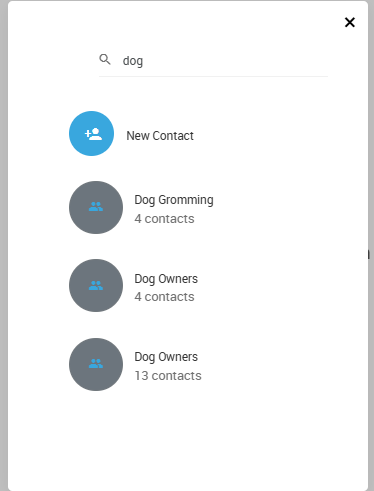
Search for and select the group you just created.
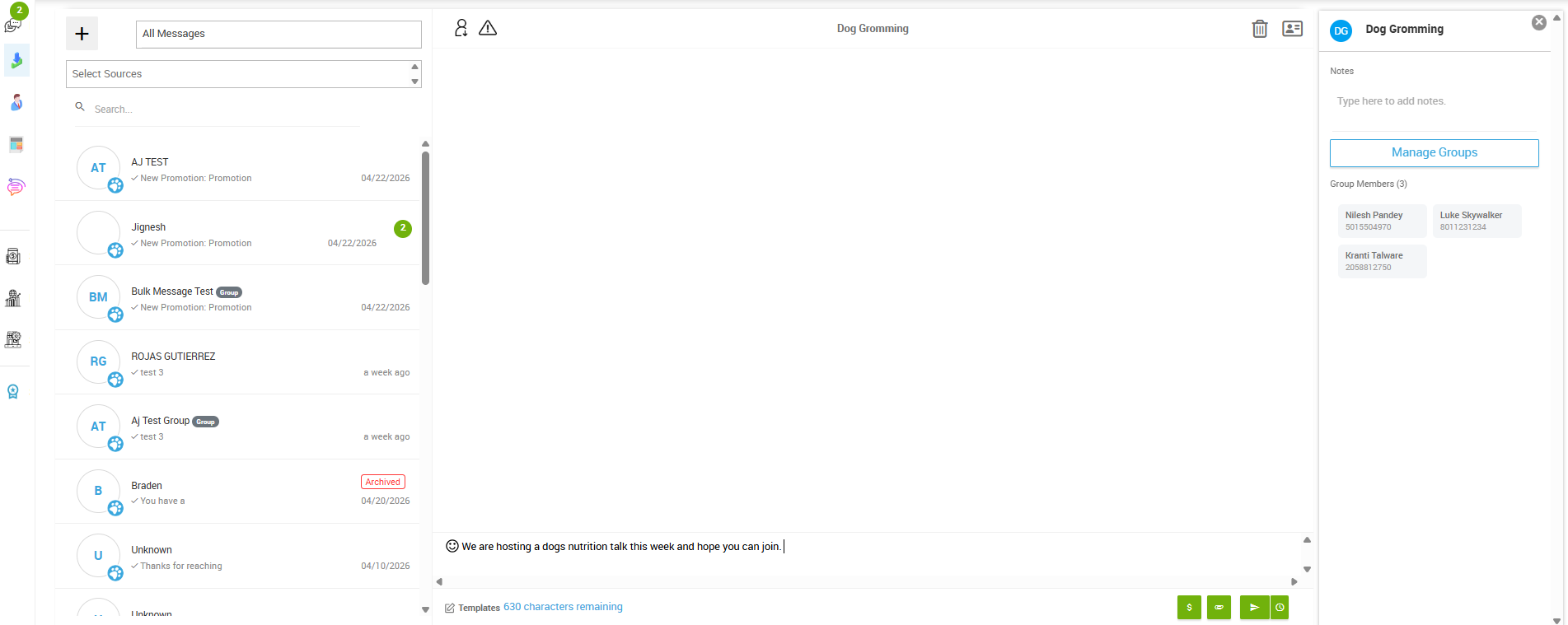
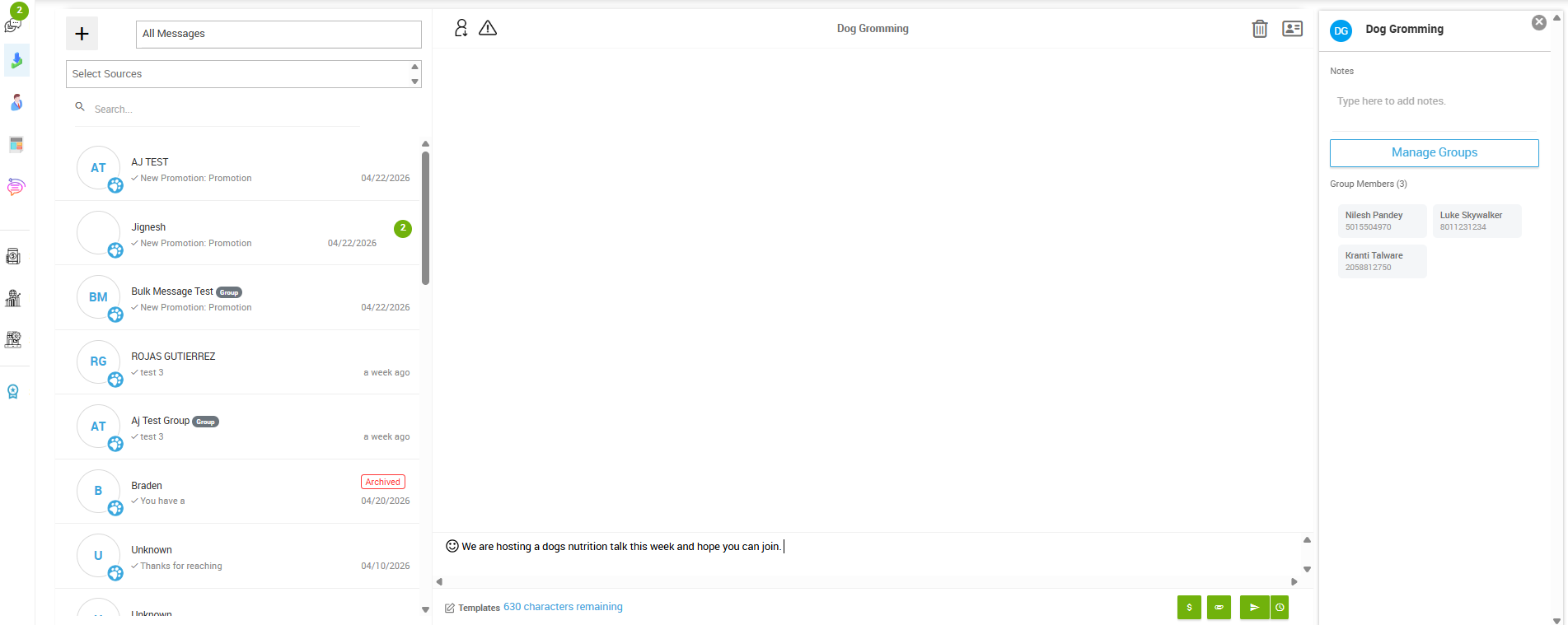
Type your message and click Send.
- What Happens After Sending
Every contact in the group will receive the message. Each contact's conversation will jump to the top of your inbox, and all replies will be handled as private, one-on-one conversations. Recipients do not see each other's responses.
Note: There are other ways to send a bulk message while inside an open conversation, but creating a group from the Contacts page is the easiest method.
Limits
- Group Size: Each group can include up to 100 contacts.
- Monthly Message Limit: You can send up to 500 bulk messages per month.
Final Tips
- Keep your groups organized by naming them clearly (for example, "VIP Customers" or "New Clients 2026").
- Double check your message before sending, as it will go out to everyone in the group at once.
- Use bulk messaging for announcements, promotions, and reminders rather than lengthy or personalized conversations.
- Remember that all replies come back as private messages, so you can follow up individually as needed.
Need Help?
If you need assistance with bulk messaging or creating contact groups, reach out to our team at Support@NextPaw.com.